How to Use DollarStoreDirectory to Find Nearby Dollar Stores
Step-by-step guidance for using DollarStoreDirectory brand, state, city, and store pages to locate and compare nearby dollar stores, with tips for verifying details and planning your visit.
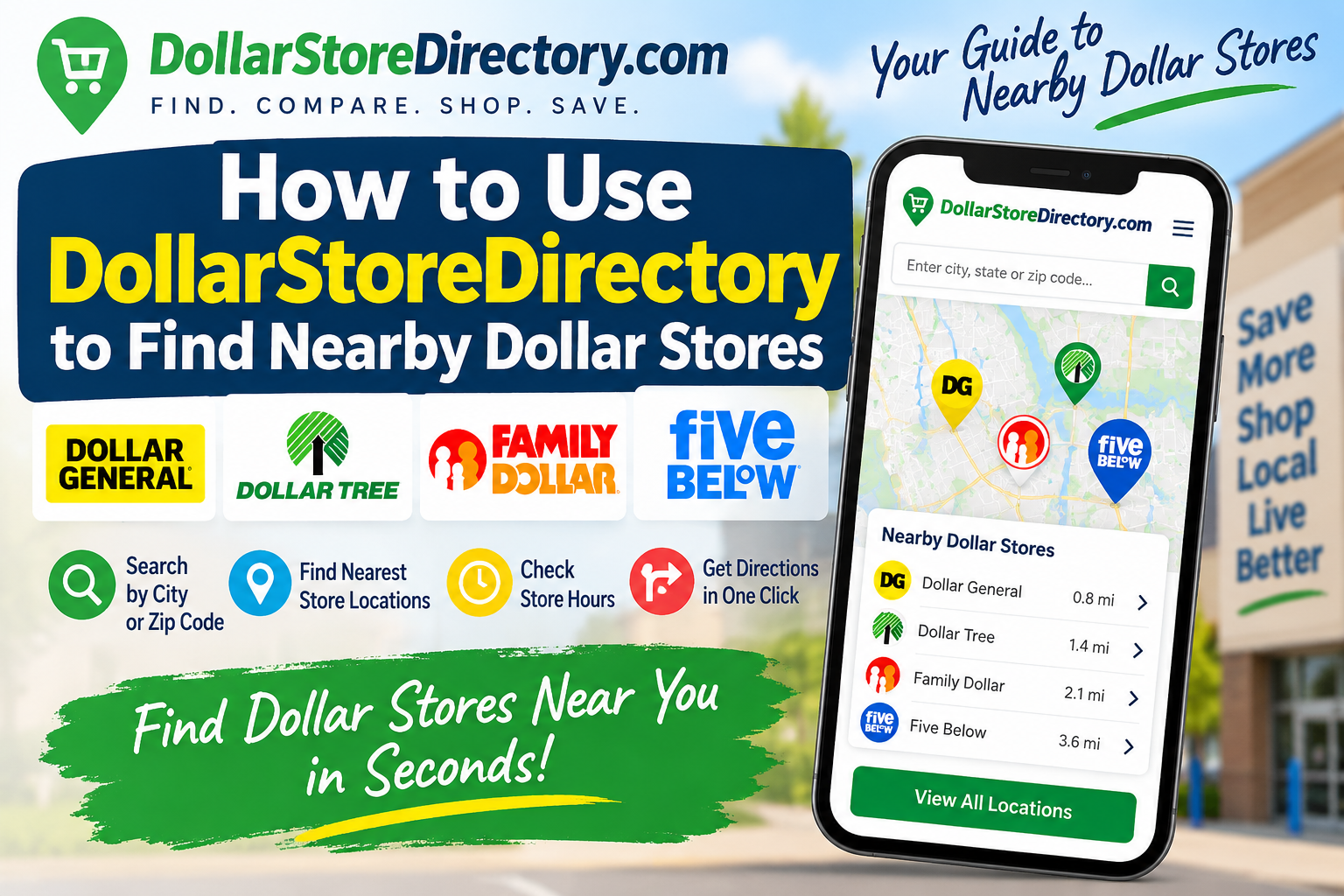
DollarStoreDirectory groups stores by brand, state, city, and individual store pages so you can find options near you without guesswork. This guide explains how to navigate those pages, what to look for on a store page, and practical checks to make before you head out.
Quick orientation: what each page type does
Brand pages
Brand pages list stores for a single retail brand and are a good place to start when you already know which chains you want to check. Examples on the site include Dollar General, Dollar Tree, Family Dollar, Five Below, and a page for Independent Dollar Stores.
State and city pages
State pages group cities, and city pages list stores within the city boundaries. If you live in or near a particular municipality, jump to the city page for a condensed list. For example, the site has city pages for municipalities in Michigan, such as Detroit, MI.
Individual store pages
Store pages provide the location-level details the directory collects. These pages are where you'll find the store address, an embedded map link or directions, and any descriptive notes the directory has published about that listing.
Step-by-step: find nearby dollar stores
-
Decide your starting strategy.
If you want a specific brand, start at a brand page. If you want every nearby option regardless of brand, search or begin at your state/city page.
-
Search or browse.
On desktop, use the site search box to enter a city name or ZIP code. From a brand page, use the geographic filters if available. On mobile, try the city page for a compact list.
-
Filter or scan results by distance.
Many users find it easiest to scan results in order of distance from their address. If the site provides a map view, use it to visualize where stores sit relative to your home or common routes.
-
Open store pages that look promising.
Click each nearby store to see the address and map link. Open two or three in new tabs to compare locations side-by-side instead of clicking back and forth.
-
Plan your visit.
Use the map link on a store page to get directions and estimate drive time. If you need to visit multiple stores, map them together to pick the most efficient route.
What to look for on a store page
- Full street address — copy it into your navigation app rather than guessing from a cross street.
- Map link — follow the map link to see nearby landmarks, parking, and the entrance location.
- Brand label — confirms whether the store is part of a national chain or listed as independent.
- Notes or listing details — the directory may include notes useful for finding the store or distinguishing similar locations.
Practical verification steps before you go
-
Check multiple sources for hours and services.
Store pages in the directory may include hours, but times can change. Use the store page as a starting point and then verify with the brand's official site or a mapping service before you travel.
-
Confirm address in your navigation app.
Paste the directory address into your preferred maps app to confirm routing, parking, and drive time. The map view also helps identify whether the store sits in a shopping center or on a standalone lot.
-
Compare two nearby stores before choosing one.
Open each store page and compare distance, ease of access, and proximity to other errands. A slightly longer drive can be worthwhile if parking and entrance are easier.
-
Save or share store pages.
Bookmark store pages or share the store link to your phone so you have the exact address and map link available while traveling.
When to use brand pages vs city pages
Use brand pages when you want to limit your search to locations of a particular chain. Use city pages when you want a broad view of everything listed in a specific area. The Independent Dollar Stores page is useful if you prefer locally owned shops instead of national chains.
Extra tips and good practices
-
Enable location on your device when safe.
If the directory or your browser asks for permission to use your location, granting it can speed up finding the nearest listings. If you prefer privacy, search by ZIP code or city instead.
-
Use the directory's local pages for planning errands.
City pages can help you see clusters of stores so you can combine errands efficiently.
-
Be aware of the directory's scope.
The current directory contains 592 active, approved, indexable records. That helps explain why some neighborhoods may show many nearby results while others show fewer.
-
Report outdated information.
If you spot an address that appears closed or incorrect, use the directory's feedback option (if available) so the listing can be reviewed and updated for other users.
Example starting points
If you want to browse specific brands first, try these pages:
For a city-level view to plan a trip in Michigan, see the Detroit, MI page as an example of how city listings are organized.
Using the directory's brand, state, city, and store pages together lets you find options near you, compare practical details, and plan the most convenient route. Start with the page type that matches your goal—brand if you want a specific chain, city if you want every nearby option—and use store pages and external maps to verify the final details before you go.